From time to time, such as when I’ve upgraded the operating system on my Mac, I’ve found that the Finder view resets to icon view. In my line of work (higher education), I prefer list view, since this lets me inspect various file attributes at a glance as well as sort on them easily. And each time, I am frustrated by the difficulty in figuring out how to set everything back the way it was, globally. (It’s amazing how often a search on how to change “all folders” results in solutions for how to change a given folder only!
Here’s one way to do it:
- Open Finder and select the hard drive.
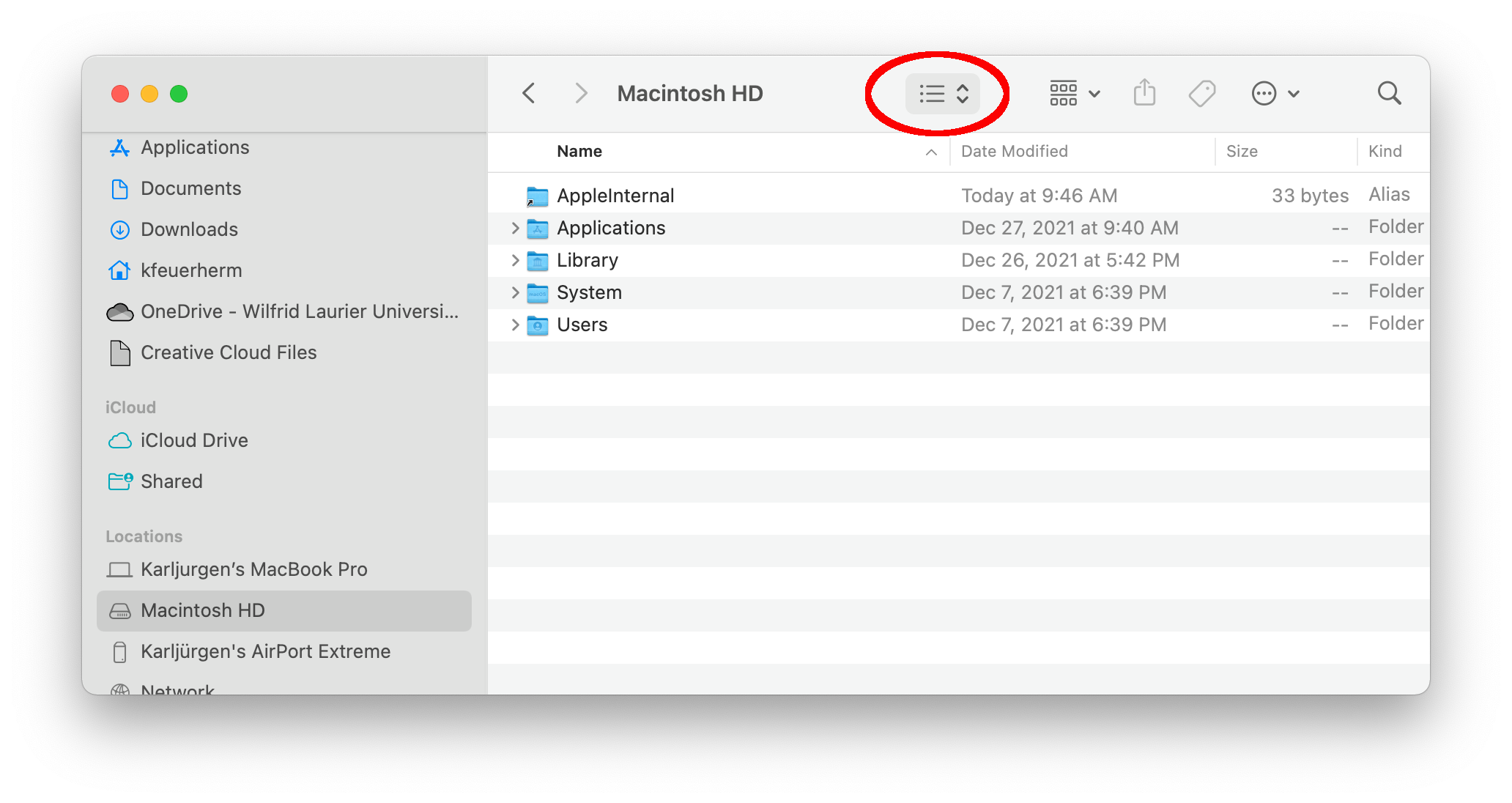
- Set the view type of this folder to list:

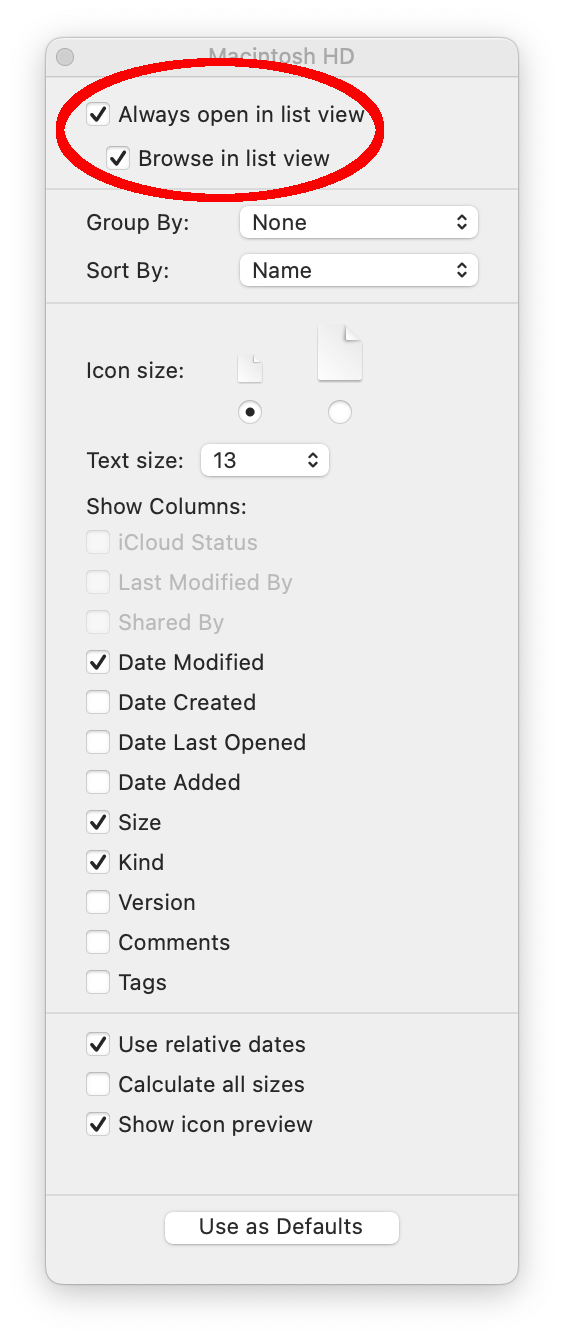
- Issue command-J and tick the top two boxes, labelled Always open in list view and Browse in list view:[1]The first of these ensures that the current folder will be opened in list view (actually, in whatever view was selected when the command-J was issued), while the second cascades this to all … Continue reading

- Click Use as Defaults at the bottom of the window.
- Open a Terminal window and issue the following command (root password will be required) to remove any individual folder overrides which have been set in the past:
sudo find / -name ".DS_Store" -exec rm {} \;Full discussion at
Image credits and references
{5462604:IKWYUZ6R};{5462604:HZ8GX4HD};{5462604:BR5VLUMI}
chicago-annotated-bibliography
creator
asc
0
4
Footnotes
| ↑1 | The first of these ensures that the current folder will be opened in list view (actually, in whatever view was selected when the command-J was issued), while the second cascades this to all sub-folders. |
|---|
